Best Computer Optimization Tips for Faster Performance
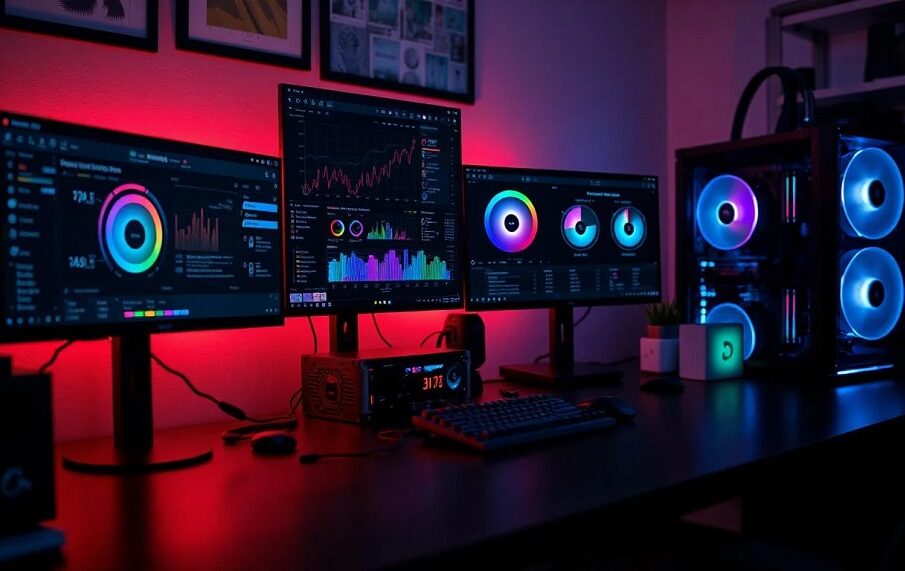
Over time, even the most powerful desktop and laptop computers can begin to feel sluggish. Unnecessary background applications, cluttered storage drives, outdated software drivers, and accumulated temporary system files gradually drain system resources. This drop in performance manifests as slow boot times, application lag, system freezes, and frustrating delays during daily tasks.
Fortunately, you do not need to purchase a brand-new computer to restore system speed. Implementing a systematic optimization routine can reclaim lost memory, maximize processor efficiency, and significantly improve overall operating speed. Here is a comprehensive guide to the best computer optimization strategies for faster performance.
Managing Startup Applications and Background Processes
When you power on your computer, numerous applications silently configure themselves to launch automatically in the background. While some startup items are essential for system security and hardware functionality, many software programs add themselves to the startup sequence unnecessarily, consuming valuable random access memory and processor capacity before you even open a browser window.
Disabling Non-Essential Startup Programs
Trimming your startup list is one of the most effective ways to reduce boot times and free up system memory immediately.
-
On Windows: Open the Task Manager using the keyboard shortcut Control Shift Escape, navigate to the Startup Apps tab, review the list of auto-launching applications, and disable non-essential programs such as cloud storage utilities, media players, and communication software.
-
On macOS: Navigate to System Settings, select General, click on Login Items, and remove unnecessary software applications from the Open at Login list.
Disabling an application from startup does not uninstall the program; it simply prevents it from running automatically until you open it manually.
Monitoring Resource-Heavy Background Tasks
Even during active use, background processes can quietly hijack system resources. Use the built-in system monitoring tools—Task Manager on Windows or Activity Monitor on macOS—to sort active processes by CPU, memory, and disk usage. If you notice an unfamiliar process consuming an abnormally high percentage of system resources, investigate the application and terminate or uninstall it.
Optimizing Storage Drives and System Memory
A full or fragmented storage drive severely restricts operating system performance. Operating systems rely on virtual memory, which uses free space on your storage drive as temporary RAM when physical memory becomes full. When your storage drive runs low on free capacity, system stability drops dramatically.
Maintaining Adequate Free Disk Space
As a general rule, maintain at least fifteen to twenty percent of your main drive capacity as free space. This cushion allows the operating system to manage virtual memory, run background updates, and store temporary system files without performance bottlenecks.
Use built-in storage management tools, such as Storage Sense on Windows or Optimize Storage on macOS, to automatically clear out cached files, empty the trash or recycle bin, and remove obsolete system updates. Additionally, locate large video files, old disk images, and unused software installers, transferring them to external storage or cloud services to free up local capacity.
Upgrading to a Solid-State Drive
If your computer still operates on a traditional mechanical Hard Disk Drive, upgrading to a Solid-State Drive is the single most impactful hardware optimization you can perform. Solid-state drives read and write data electronically rather than mechanically, resulting in near-instantaneous boot times, rapid application launches, and significantly faster file transfers. Modern NVMe solid-state drives offer speeds many times faster than older mechanical drives, reviving older hardware instantly.
Streamlining Operating System Visuals and Power Settings
Modern operating systems use transparent windows, smooth animations, shadow effects, and desktop visuals to improve aesthetics. While visually appealing, these graphics effects consume graphic processing unit power and system RAM, particularly on budget or older systems.
Adjusting Visual Effects for Maximum Performance
Disabling unnecessary visual animations can noticeably improve system responsiveness, making window management and desktop navigation feel immediate.
In Windows, search for Performance Options, select Adjust for best performance, or manually disable specific visual effects such as window shadows, smooth scrolling, and animated controls. On macOS, navigate to System Settings under Accessibility, select Display, and enable Reduce motion and Reduce transparency to lighten the graphics load.
Utilizing High Performance Power Management
Operating systems often default to balanced or power-saver energy modes to conserve battery power or reduce energy consumption. However, these settings throttle processor speeds and limit hardware performance.
Switching your power configuration to High Performance on Windows or turning off Energy Saver limitations while connected to power ensures that your Central Processing Unit runs at its maximum capability when demanding software applications require computing power.
Software Maintenance and Malware Prevention
Software clutter and security threats are major contributors to gradual performance degradation. Regular digital maintenance ensures your operating system remains lean and secure.
Uninstalling Unnecessary Bloatware and Unused Apps
New computers often come preloaded with third-party trial software, utility tools, and promotional applications known as bloatware. Over time, users also install applications that are used once and forgotten.
Audit your installed software applications every few months. Remove unnecessary programs through the Apps section in Windows Settings or by moving unneeded applications to the Trash on macOS. Removing these programs cleans up system registries, deletes background services, and recovers storage space.
Updating Drivers and Operating System Patches
Outdated device drivers, especially graphics card and chipset drivers, can cause system crashes, hardware conflicts, and sluggish graphics rendering. Keep your device drivers updated by running system updates regularly or downloading software drivers directly from hardware manufacturers. Similarly, installing operating system security patches ensures that memory leak bugs and performance vulnerabilities are patched promptly.
Performing Regular Malware and Adware Scans
Malicious software, spyware, browser hijackers, and crypto-mining adware run covertly in the background, consuming substantial CPU and network bandwidth. Run regular system scans using reliable, updated antivirus software or built-in tools like Windows Defender to detect and eliminate malicious software threats.
Browser Optimization for Faster Web Performance
For many users, the web browser is the primary application used throughout the day. Web browsers like Google Chrome, Microsoft Edge, and Mozilla Firefox are notoriously resource-intensive, often consuming gigabytes of system RAM across multiple open tabs.
-
Manage active tabs: Avoid keeping dozens of browser tabs open simultaneously; use tab-suspending browser extensions or native tab-sleeping features to put inactive tabs to sleep automatically.
-
Remove unused extensions: Browser extensions run continuously in the background, consuming memory and slowing page load speeds. Remove any browser add-ons that are not essential.
-
Clear browser cache periodically: Over time, cached images and scripts can become corrupted or excessively large, slowing down web browsing performance. Clear your browser cache and cookies periodically to maintain snappy browsing.
Hardware Upgrades and Thermal Management
When software tweaks hit their limit, physical maintenance and strategic hardware upgrades offer the next step in performance optimization.
Dust Removal and Thermal Control
Computers generate significant internal heat during operation. When cooling fans and heat sinks become clogged with dust, internal temperatures rise, forcing the CPU and GPU to automatically lower their operating speeds to prevent physical damage. This process, known as thermal throttling, causes extreme performance drops.
Clean out dust buildup inside desktop cases and laptop cooling vents every six to twelve months using compressed air. Maintaining proper airflow keeps internal components cool, allowing them to sustain peak clock speeds under heavy workloads.
Expanding Physical System Memory
If your computer frequently slows down when multitasking or working with large software applications, expanding your physical RAM is a cost-effective hardware solution. Increasing system memory from eight gigabytes to sixteen gigabytes or more prevents the system from relying on slow disk-based virtual memory, ensuring smooth multitasking performance.
Frequently Asked Questions
How often should you restart your computer to maintain optimal speed?
Restarting your computer at least once or twice a week is recommended. Restarting clears system memory, closes lingering background processes, terminates leaked memory tasks from closed applications, and completes pending operating system updates that require a reboot.
Do third-party registry cleaners genuinely improve computer speed?
No, using third-party registry cleaners is generally unnecessary and can be risky. Modern operating systems manage their registries efficiently, and aggressive registry cleaners often accidentally delete critical system entries, causing software instability or system crash errors without delivering noticeable performance gains.
What is the difference between clearing cache files and deleting personal data?
Clearing cache files removes temporary data created by applications and operating systems to speed up short-term operations, such as cached website images or installation logs. Deleting cache files is safe and recovers storage space without deleting your personal documents, photos, or saved files.
Why does a computer run slow even when there is plenty of free storage space?
Free storage space is only one factor in performance. A computer can run slowly due to insufficient physical RAM, high CPU usage from background software, malware infections, outdated device drivers, thermal throttling caused by dust buildup, or hardware failure in aging components.
Is web browsing speed determined by computer optimization or internet connection?
Web browsing speed depends on both factors. Your internet service provider determines raw network download and upload speeds, but your computer’s RAM, processor efficiency, and browser configuration dictate how quickly your system renders web pages, processes scripts, and handles multiple open tabs.
Can running two antivirus programs simultaneously make a computer faster or safer?
No, running two active real-time antivirus programs simultaneously actually slows down your computer dramatically. The two security software programs will conflict with one another, compete for system access, consume double the memory and processing power, and potentially cause system crashes.
How do you know if a slow computer needs software cleanup or a hardware replacement?
If your computer experiences delays during basic desktop navigation, web browsing, or video playback despite having a clean operating system and an SSD, the hardware processor and RAM may be outdated for modern software demands. However, if performance drops suddenly after installing new applications or during heavy multitasking, software optimization or a simple RAM upgrade will usually resolve the issue.